
Hyundai Accent (HC): Audio (With Touch Screen) / Feature of Your Audio
Head unit
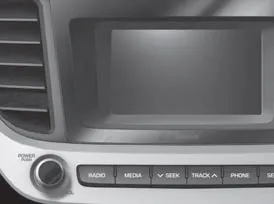
â– Type C
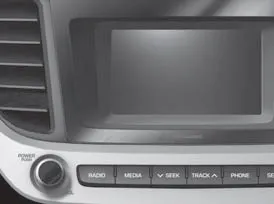
â– Type D
� The actual image in the Hyundai Accent may differ from the illustration.
(1) POWER/VOL knob
- Turn to adjust the volume.
- Press to turn the device on or off.
(2) RADIO
- Start FM, AM and SiriusXM* Radio.
(3) MEDIA
- Select USB (iPod®), Bluetooth® Wireless Technology (BT) Audio, AUX or My Music.
- Display the media menu when two or more media are connected or when the [MEDIA] button is pressed in media mode.
(4) SEEK/TRACK
- Search for the next station in radio mode.
- Search for the next station in SiriusXM* radio mode.
- Change the current song in media mode.
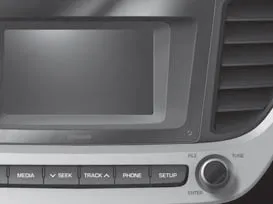
â– Type C
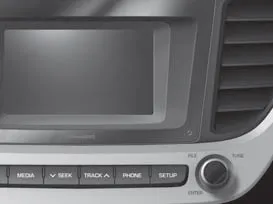
â– Type D
(5) PHONE
- Start Bluetooth® Wireless Technology Phone mode.
(6) SETUP
- Access Display, Sound, Date/Time, Bluetooth, System, Screen Saver and Display Off settings.
(7) TUNE knob
- Turn to navigate through the stations/songs list.
- Press to select an item.
(8) RESET
- Shutdown and restart the system.
Steering wheel remote control
On the Hyundai Accent, the steering wheel remote controls let you manage audio and hands-free calling without taking your hands off the wheel. These buttons are designed to improve convenience while helping you stay focused on the road.
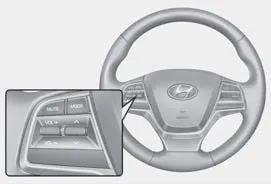
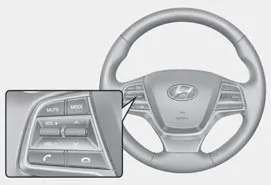
(Bluetooth® Wireless Technology equipped model)
� The actual image in your Hyundai Accent may differ slightly from the illustration depending on trim level, region, and infotainment options.
1) MUTE
- Mutes the audio output instantly (useful when parking, speaking to passengers, or hearing external traffic sounds).
- Mutes the microphone during a call. (Bluetooth® Wireless Technology equipped model) This helps prevent the other party from hearing cabin noise when needed.
(2) MODE
- Press the button to change the mode in the following order: Radio ➟ Media. On some Hyundai Accent systems, “Media� may include USB, Bluetooth® audio, or AUX depending on what is connected.
- Press and hold the button to turn off the audio system power (a quick way to silence the head unit without changing volume settings).
(3) VOLUME
- Press to adjust the volume up or down. Set a comfortable level that still allows you to hear sirens, horns, and other important outside sounds.
(4) UP/DOWN
- Press the button in radio mode to search Presets (step through your saved stations).
- Press and hold the button in radio mode to search frequencies (seek/scan) until you release the switch.
- Press the button in media mode to change the current song. (except AUX) This typically skips to the previous/next track on USB or Bluetooth® audio sources.
- Press and hold the button in media mode to quick search through songs. (except Bluetooth® Wireless Technology(BT) Audio and AUX) Some sources support fast-forward/rewind behavior while holding the switch.
(5) CALL (if equipped)
- Pressing the button
- If not in Bluetooth® Wireless Technology Handsfree mode or receiving a phone call. First press: Display Dial Number screen. Second press: Automatically display the most recently Dialed Call number. Third press: Dial the phone number entered.
- Press in the Incoming Call notification screen to accept the phone call.
- Press in Bluetooth® Wireless Technology Handsfree mode to switch to the waiting call. This helps you handle call waiting while keeping both hands on the wheel. - Pressing and holding the button
(over 1.0 seconds)
- If not in Bluetooth® Wireless Technology Handsfree mode or receiving a phone call, the most recently Dialed Call number is dialed.
- Press in Bluetooth® Wireless Technology Handsfree mode to transfer the call to your cell phone (for privacy or improved reception if needed).
- Press in cell phone mode to switch to Bluetooth® Wireless Technology Handsfree mode.
(6) END (if equipped)
- Press in Bluetooth® Wireless Technology Handsfree mode to end the phone call cleanly.
- Press in the incoming call screen to reject the call (for example, if you are driving in heavy traffic).
Tip for Hyundai Accent owners: if the buttons do not respond as expected, confirm that the ignition is in the ON position and the audio system is powered on, and verify that your phone is paired and connected via Bluetooth® Wireless Technology.
WARNING
Audio System Safety Warnings
- Do not use a cellular phone while driving. Stop at a safe location to use a cellular phone.
- Do not stare at the screen while driving. Staring at the screen for prolonged periods of time could lead to traffic accidents.
- Do not disassemble, assemble, or modify the audio system. Such acts could result in accidents, fire or electric shock.
- Using the phone while driving may lead to a lack of attention of traffic conditions and increase the likelihood of accidents. Use the phone feature after parking the vehicle.
- Exercise caution not to spill water or introduce foreign objects into the device. Such acts could lead to smoke, fire, or product malfunction.
- Please refrain from use if the screen is blank or no sound can be heard as these signs may indicate product malfunction. Continued use in such conditions could lead to accidents (fires, electric shock) or product malfunctions.
- Do not touch the antenna during thunder or lightening as such acts may lead to lightning induced electric shock.
- Do not stop or park in parking- restricted areas to operate the product. Such acts could lead to traffic accidents.
- Use the system with the vehicle engine turned on. Prolonged use with the ignition turned on only could result in battery discharge.
WARNING
Distracted Diriving
Driving while distracted can result in a loss of vehicle control that may lead to an accident, severe personal injury, and death. The driver’s primary responsibility is in the safe and legal operation of a vehicle, and use of any handheld devices, other equipment, or vehicle systems which take the driver’s eyes, attention and focus away from the safe operation of a vehicle or which are not permissible by law should never be used during operation of the vehicle.
NOTICE
- Operating the device while driving could lead to accidents due to a lack of attention to external surroundings. First park the Hyundai Accent before operating the device.
- Adjust the volume to levels that allow the driver to hear sounds from outside of the vehicle. Driving in a state where external sounds cannot be heard may lead to accidents.
- Pay attention to the volume setting when turning the device on. A sudden output of extreme volume upon turning the device on could lead to hearing impairment. (Adjust the volume to a suitable levels before turning off the device.)
- Turn on the car engine before using this device. Do not operate the audio system for long periods of time only with the ignition turned on as such operations may lead to battery discharge.
- Do not subject the device to severe shock or impact. Direct pressure onto the front side of the monitor may cause damage to the LCD.
- When cleaning the device, make sure to turn off the device and use a dry and smooth cloth. Never use rough materials, chemical cloths, or solvents (alcohol, benzene, thinners, etc.). As such materials may damage the device panel or cause color/quality deterioration.
- Do not place beverages close to the audio system. Spilling beverages may lead to system malfunction.
- In case of product malfunction, please contact your place of purchase or After Service center.
- Placing the audio system within an electromagnetic environment may result in noise interference.
- Prevent caustic solutions such as perfume and cosmetic oil from contacting the dashboard because they may cause damage or discoloration.
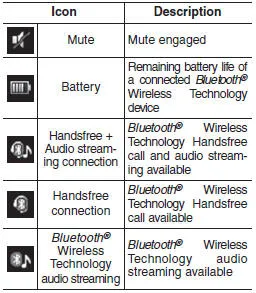
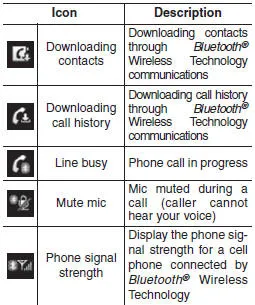
Information on status icons
Icons showing audio status are shown in the upper-right corner of the screen so you can quickly confirm key infotainment conditions in your Hyundai Accent without taking your attention off the road for long.
Depending on the Hyundai Accent audio unit and connected devices, these icons may reflect items such as radio reception, Bluetooth® connectivity, mute status, or other system notifications.


Other information:
Hyundai Accent (HC) (2017 - 2022) Owner's Manual: Air bag - Advanced supplemental restraint system
In addition to seat belts and child restraints, the Hyundai Accent uses an Advanced Supplemental Air Bag System to help protect occupants in certain types of crashes. Air bags are not a substitute for seat belts; they are designed to work with properly worn belts. 1. Driver's front air bag 2. Passenger's front air bag 3. Side air bag 4. Curtain air bag This vehicle is equipped with an Advanced Supplemental Air Bag System for the driver's seat and front passenger's seats.Hyundai Accent (HC) (2017 - 2022) Owner's Manual: Description and Operation
- Description The SMART KEY system is a system that allows the user to access and operate a vehicle in a very convenient way. To access the vehicle, no traditional key or remote control unit is needed.The user carries a SMART KEY FOB which does not require any conscious actions by the user (e.g. operate a RKE button). The SMART KEY system is triggered by pressing a push button in the door handle.
Categories
- Manuals Home
- Hyundai Accent Owners Manual
- Hyundai Accent Service Manual
- Questions & Answers
- Video Guides
- Useful Resources
- New on site
- Most important about car
- Privacy Policy

0.0073