
Hyundai Accent (HC): Audio (With Touch Screen) / Media
Information - Using MP3 on the Hyundai Accent: This media section explains how your Hyundai Accent audio system handles common music files and what to expect when browsing tracks.
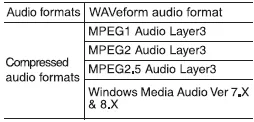
Supported audio formats: The Hyundai Accent multimedia unit is designed to play popular formats for everyday listening, provided the files meet the requirements shown below.
NOTICE
File formats other than the formats above may not be recognized or playable. Information such as filename may not be displayed. To ensure smooth playback in your Hyundai Accent, convert unsupported files to a supported format and keep filenames simple.
Range of supported file types: The following specifications help you choose the best settings when creating or downloading music for the Hyundai Accent.
1. Bitrate range (Kbps): Higher bitrates usually deliver clearer sound, but may increase file size on your USB drive.
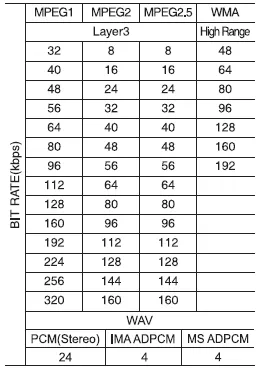
2. Sampling frequency (Hz): Use standard sampling rates for best compatibility with the Hyundai Accent media player.
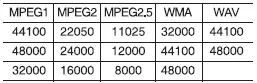
- The sound quality of MP3/WMA compressed and WAV files may vary depending on the bitrate. (A higher bitrate can have better sound quality.) In a Hyundai Accent, a well-encoded file at a suitable bitrate typically sounds cleaner with less distortion and fewer artifacts.
- The product only recognizes files with the MP3, WMA or WAV extension. Files without one of these extensions are not recognized. If your Hyundai Accent does not list a track, verify the file extension and re-save the file if needed.
3. Number of recognizable folders and files: Organize your music library so the Hyundai Accent can index it quickly and display it reliably.
- Folders: 2,000 for USB
- Files: 6,000 for USB
- No recognition limit for folder hierarchies. However, keeping a clean folder structure can make searching faster on the Hyundai Accent screen.
4. Character display range (Unicode): The Hyundai Accent display may truncate or omit characters outside the supported limits.
- Filenames: Up to 64 English characters (64 Korean characters)
- Foldernames: Up to 32 English characters (32 Korean characters)
Languages supported (Unicode support)
- Korean: 2,604 characters
- English: 94 characters
- Common Chinese characters: 4,888 characters
- Special symbols: 986 characters
NOTICE
Japanese/Simplified Chinese characters are not supported. If you see missing text on the Hyundai Accent media screen, rename files using supported characters.
Information - Using the USB Devices
- Starting the vehicle while a USB device is connected can damage the device. Please disconnect USB devices before starting the vehicle. For the Hyundai Accent, it is best practice to plug in the USB after the engine is running and the system has fully powered up.
- Starting the vehicle or stopping the engine while an external USB device is connected can result in failure of the external USB device to operate. If your Hyundai Accent stops reading the drive, cycle the connection after the vehicle is stabilized.
- Be cautious of static electricity when connecting/disconnecting external USB devices. Discharge static by touching a metal part of the Hyundai Accent interior before handling the connector.
- An encrypted MP3 player is not recognized when connected as an external device. Use standard USB storage or a non-encrypted device for Hyundai Accent playback.
- External USB devices may not be recognized, depending on the state of the external USB device. Drives with physical damage, corrupted data, or unstable power draw may not work reliably in the Hyundai Accent.
- Only products with byte/sectors formatted at 4 KB or lower are recognized. If formatting a drive for the Hyundai Accent, choose a compatible allocation unit size.
- Only USB devices in FAT12/16/32 format are recognized; NTFS and ExFAT file systems are not recognized. Reformat to FAT32 when preparing a USB drive for a Hyundai Accent (back up your files first).
- Some USB devices are not recognized due to compatibility issues. If one drive fails in your Hyundai Accent, try a different brand or a smaller capacity drive.
- Do not touch the USB connections. Keep the Hyundai Accent USB port clean and free of debris to maintain a solid connection.
- Connecting and disconnecting USB devices rapidly over a short period of time can cause equipment failure. Allow the Hyundai Accent system a moment to detect the device before unplugging.
- Abnormal sounds may be audible when the USB device is disconnected. Lower the volume first to protect the Hyundai Accent speakers and your hearing.
- Turn the audio off before connecting or disconnecting external USB devices. This reduces the chance of pops through the Hyundai Accent audio system.
- Recognition may take longer depending on the type, capacity or file format of the external USB device. This is not a product malfunction. Large libraries can take extra time for the Hyundai Accent to index, especially after new files are added.
- Use of USB devices for purposes other than playing music files is prohibited. For the Hyundai Accent, the USB port is intended for supported media playback and approved connectivity only.
- Image display and video playback are not supported. Even if files are present, the Hyundai Accent media unit will focus on audio playback only.
- Use of USB accessories, including charge and heat though the USB I/F, can lead to reduced product performance or malfunctions. Do not use USB devices or accessories for these purposes. Avoid high-draw charging gadgets in the Hyundai Accent USB port to keep performance stable.
- Use of aftermarket USB hubs and extension cables can result in the vehicle’s audio system failing to recognize your USB device. Connect the USB device directly to the multimedia port of your vehicle. For the Hyundai Accent, direct connection also helps prevent intermittent dropouts.
- When using high-capacity USB devices with logical drive divisions, only files saved on the highest level logical drive can be played. If applications are loaded on a USB drive, file playback may fail. Keep music on the primary partition for the best Hyundai Accent compatibility.
- Some MP3 players, cell phones, digital cameras, etc. (USB devices that are not recognized as mobile storage) may not operate normally when connected. If you want consistent results in a Hyundai Accent, use a dedicated USB flash drive.
- USB charging may not be supported by some mobile devices. If your phone does not charge in the Hyundai Accent, use the recommended charging method or a suitable power adapter.
- Operation is guaranteed only for standard (Metal Cover Type) USB Memory drives. Using a robust, standard drive helps the Hyundai Accent maintain a reliable connection.
- Operation of HDD, CF, SD and memory stick devices is not guaranteed. For the Hyundai Accent, choose common USB flash memory devices for best results.
- DRM (Digital Rights Management) files cannot be played. Use non-DRM music files if you want them to appear and play correctly in the Hyundai Accent.
- SD-type USB memory, CF-type USB memory, and other USB memory devices that require adapters for connection are not supported. Adapter-based storage can be unstable and may not be detected by the Hyundai Accent.
- Proper operation of USB HDDs or USB drives with connectors that loosen due to vehicle vibrations is not guaranteed. (iStick, etc.) Choose a snug-fitting connector so vibration in the Hyundai Accent does not interrupt playback.
- USB products that are used as key chains or cell phone accessories may damage the USB jack and affect proper file playback. Please refrain from use. Use only products with plug connectors, as shown in the following illustration. Protect the Hyundai Accent USB jack by using a straight, solid plug rather than heavy dangling accessories.
- When MP3 devices or cell phones are connected simultaneously through AUX, BT Audio and USB modes, a popping noise or malfunction may occur. To avoid audio issues in the Hyundai Accent, use one connection method at a time and switch sources after playback stops.
The USB mode in the Hyundai Accent multimedia system gives you quick, familiar controls for playing music directly from a USB drive, with clear on-screen shortcuts for repeat, shuffle, browsing, and track progress.
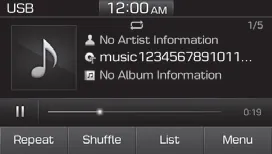
(1) Repeat
Enable/disable repeat play on the Hyundai Accent to keep your music cycling the way you prefer.
(2) Shuffle
Enable/disable shuffle play so the Hyundai Accent can play songs in a randomized order.
(3) List
View a list of all songs detected on the USB device and available for playback in the Hyundai Accent.
(4) Menu
Navigate to the menu screen for additional USB features and options in your Hyundai Accent.
(5) Album Image
View song info, including available album artwork and key track details shown on the Hyundai Accent display.
(6) Pause
Pause or play music. The Hyundai Accent will resume playback from the current position when you press play again.
(7) Playback progress
Select to skip to the desired location within the song, allowing precise navigation while listening in the Hyundai Accent.
Playback
Press the [MEDIA] button, and select [USB]. For the smoothest Hyundai Accent experience, connect the USB drive securely and allow a moment for recognition.
• Connect a USB drive to the USB port to automatically play files on the USB drive. If playback does not start, reconnect the device and confirm it contains supported audio files.
Changing songs
Press the [SEEK/TRACK] button to play the previous or next song. The Hyundai Accent will switch tracks and refresh the on-screen information.
- Press and hold the [SEEK/TRACK] button to rewind or fast forward the currently playing song. Release the button to continue normal playback on the Hyundai Accent.
- Search songs by turning TUNE knob, and press the knob to play. This method is especially helpful in a Hyundai Accent when browsing large USB libraries.
Selecting songs from a list
Select [List] to see a list of songs available for play. Depending on how your USB is organized, the Hyundai Accent may show different browsing categories.
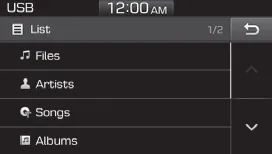
Select and play the desired song. Once selected, the Hyundai Accent begins playback and returns you to the main USB screen.
Repeat play
Select [Repeat] to enable or disable 'Repeat all', 'Repeat current song', 'Repeat folder' or 'Repeat category' play. Choose the mode that best matches your listening style in the Hyundai Accent.
-
 Repeat all: All songs in
the
playlist are repeated.
Repeat all: All songs in
the
playlist are repeated. -
 Repeat current song: The
currently
playing song is repeated.
Repeat current song: The
currently
playing song is repeated. -
 Repeat folder: All songs
in the
current folder are repeated.
Repeat folder: All songs
in the
current folder are repeated. -
 Repeat category: Repeat
all
songs in the current category.
Repeat category: Repeat
all
songs in the current category.
Information
The repeat folder function is available only when songs are playing from the [File] category under [List]. For Hyundai Accent owners, this means you must browse via [List] → [File] to use folder-based repeating.
Shuffle play
Select [Shuffle] to enable or disable 'Shuffle', 'Shuffle folder' or 'Shuffle category' play. These options help keep long drives in the Hyundai Accent feeling fresh with varied playback.
-
 Shuffle: Songs are played
in
random order.
Shuffle: Songs are played
in
random order. -
 Shuffle folder: Songs
within
the current folder are played in random
order.
Shuffle folder: Songs
within
the current folder are played in random
order. -
 Shuffle category: Songs
within
the current category are played in
random order.
Shuffle category: Songs
within
the current category are played in
random order.
Menu
Select [Menu], and select the desired function. The Hyundai Accent USB menu includes saving tracks, viewing detailed song information, and adjusting sound settings.
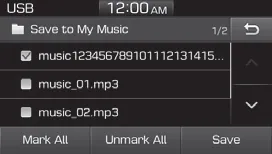
- Save to My Music*: Songs on your USB device can be saved to My Music. This is useful if you want key favorites stored inside the Hyundai Accent system for quick access.
(1) File: Select a file to save.
(2) Mark All: Select all files.
(3) Unmark All: Deselect all files.
(4) Save: Save the selected file(s).
- Select the files you want to save,
and select [Save]. This saves the
selected files to My Music.
- If phone calls are received or
made while saving, saving will be
canceled.
- Up to 6,000 files can be saved.
- The currently playing file on the
USB device cannot be changed
while saving.
- My Music cannot be used while
saving.
- Up to 700 MB can be saved.
- For best Hyundai Accent results, avoid unplugging the USB device until saving is fully complete.
- Information: Detailed information on the currently playing song is displayed. This may include file name details and playback status on the Hyundai Accent display.
- Sound Settings: Audio sound settings can be changed. Adjust tone and balance to match your cabin preferences in the Hyundai Accent.
Information - Using the iPod® Devices
- To use the audio system’s iPod® control function, use the dedicated cable provided with your iPod®. For stable Hyundai Accent connectivity, plug the cable in firmly and avoid loose adapters.
- Connecting the iPod® to the vehicle during play may result in a loud noise that lasts about one to two seconds. Connect the iPod® to the vehicle after stopping or pausing play. This helps protect the Hyundai Accent speakers and reduces sudden audio spikes.
- Connect the iPod® with the vehicle in the ACC ON state to begin charging. If charging is inconsistent in your Hyundai Accent, try another certified cable.
- When connecting the iPod® cable, be sure to fully push the cable into the port. A partial connection may cause the Hyundai Accent to disconnect or fail to recognize the device.
- When EQ effects are enabled simultaneously on external devices, such as iPod®s and the audio system, the EQ effects may overlap, causing sound quality deterioration or distortion. Deactivate the EQ function for all external devices, if possible. This usually delivers cleaner sound through the Hyundai Accent audio system.
- Noise may occur when your iPod® or the AUX port is connected. Disconnect and store separately when not in use. Keeping cables tidy also helps reduce wear on the Hyundai Accent ports.
- There may be noise if the audio system is used with an iPod® or AUX external device connected to the power jack. In these cases, disconnect the iPod® or external device from the power jack. Separating power and audio connections can improve Hyundai Accent playback stability.
- Play may be interrupted, or device malfunctions may occur depending on the characteristics of your iPod®/iPhone®/iPad®. If issues occur in your Hyundai Accent, close background apps and reconnect the device.
- Play may fail if your iPhone® is connected through both Bluetooth® Wireless Technology and USB. In this case, select Dock connector or Bluetooth® Wireless Technology on your iPhone® to change the sound output settings. Using one connection method at a time helps the Hyundai Accent avoid conflicts.
- If your software version does not support the communication protocol or your iPod® is not recognized due to device failure, anomalies or defects, iPod® mode cannot be used. Keeping device software updated may improve Hyundai Accent compatibility.
- iPod® nano (5th generation) devices may not be recognized if the battery is low. Charge sufficiently before use. A well-charged device is more likely to stay connected in the Hyundai Accent.
- The search and song play order in the iPod® device may be different from the search order in the audio system. This is normal and depends on how the Hyundai Accent indexes media lists.
- If the iPod® has failed due to an internal defect, please reset the iPod® (consult your iPod® manual). After resetting, reconnect to the Hyundai Accent and wait for recognition.
- Depending on the software version, the iPod® may fail to sync with the system. If the media is removed or disconnected before recognition, the previous mode may not be restored (iPad® cannot be charged). Wait until the Hyundai Accent finishes recognizing the device before disconnecting.
- Cables other than the 1-meter cable provided with iPod®/iPhone®/iPad® products may not be recognized. Use a high-quality certified cable for best Hyundai Accent performance.
- When other music apps are used on your iPod®, the system sync function may fail due to malfunction of the iPod® application. If this happens in your Hyundai Accent, close other audio apps and restart the device.
iPod®
This iPod® screen in the Hyundai Accent multimedia system provides familiar controls—repeat, shuffle, browsing lists, and quick access to playback details—so you can manage your music with minimal distraction.
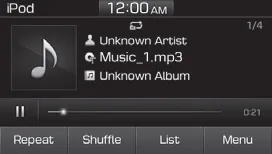
(1) Repeat
Enable/disable repeat play. Use this in your Hyundai Accent to keep a song or a category looping the way you prefer.
(2) Shuffle
Enable/disable shuffle play so the Hyundai Accent can vary the listening order for more variety on longer drives.
(3) List
View a list of all songs. The Hyundai Accent will display available categories for faster browsing when your library is large.
(4) Menu
Navigate to the menu screen to access additional iPod® options and sound-related settings in the Hyundai Accent.
(5) Album Image
View song info, including available album artwork and track details shown on the Hyundai Accent display.
(6) Pause
Pause or play music. When resumed, the Hyundai Accent continues from the same point in the track.
(7) Playback progress
Select to skip to the desired location. This makes it easy to jump within a longer track or podcast-style audio on the Hyundai Accent.
Playback
Connect your iPod® to the audio USB port, press the [MEDIA] button, and select [iPod]. For the best Hyundai Accent experience, connect the cable firmly and allow a moment for the system to recognize the device.
Changing songs
Press the [SEEK/TRACK] button to play the previous or next song. The Hyundai Accent updates the on-screen track information as you change songs.
Press and hold the [SEEK/TRACK] button to rewind or fast forward the currently playing song. Release the button to return to normal playback on the Hyundai Accent.
Search songs by turning the TUNE knob, and press the knob to play. This is a quick way to scroll and select without opening long lists in the Hyundai Accent.
Selecting songs from a list
Select [List] to see a list of songs available for play. Depending on how your iPod® content is organized, the Hyundai Accent may present items by category (such as artists, albums, or playlists).
Select and play the desired song. Once selected, the Hyundai Accent begins playback and returns you to the main iPod® screen.
Repeat play
Select [Repeat] to enable or disable 'Repeat category', 'Repeat current song' play. Choose the repeat mode that matches how you want to listen in your Hyundai Accent.
-
 Repeat category: Repeat
all
songs in the current category. This is useful when you want the Hyundai Accent to keep replaying an album, playlist, or similar grouping.
Repeat category: Repeat
all
songs in the current category. This is useful when you want the Hyundai Accent to keep replaying an album, playlist, or similar grouping. -
 Repeat current song: The
currently
playing song is repeated. Use this in the Hyundai Accent when you want to loop one track continuously.
Repeat current song: The
currently
playing song is repeated. Use this in the Hyundai Accent when you want to loop one track continuously.
Shuffle play
Select [Shuffle] to enable or disable 'Shuffle category' play. When enabled, the Hyundai Accent randomizes playback within the selected category.
•
 Shuffle category: Songs within
the current category are played in
random order. This helps mix up your listening without changing categories in the Hyundai Accent.
Shuffle category: Songs within
the current category are played in
random order. This helps mix up your listening without changing categories in the Hyundai Accent.
Menu
Select [Menu], and select the desired function. The Hyundai Accent menu provides quick access to information screens and audio adjustments.
- Information: Detailed info on the currently playing song is displayed, including track details as provided by the connected iPod®.
- Sound Settings: Audio sound settings can be changed. Adjust tone and balance to match your cabin preference in the Hyundai Accent.
When other music programs are running
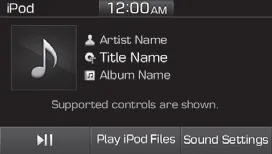
When songs saved on your iPod® are playing through a separate music app, the above screen is displayed. This lets the Hyundai Accent control playback at a basic level or switch back to iPod®-stored files.
(1) Play/Pause: Pause or play music. Use this to quickly control playback from the Hyundai Accent screen.
(2) Play iPod Files: Play music saved on your iPod®. Select this if you want the Hyundai Accent to browse and play the files stored directly on the iPod® device.
(3) Sound Settngs: Audio sound settings can be changed. Even if the label appears abbreviated, the Hyundai Accent still applies your selected audio adjustments.
(4) Album Image: View playback info. This may include track status, elapsed time, and album artwork when available on the Hyundai Accent display.
Playing iPod files
Select [Play iPod Files] to play songs saved on your iPod®. This returns control to the Hyundai Accent iPod® mode for full browsing and selection.
If there are no songs saved on your iPod®, the [Play iPod Files] is disabled. In that case, use the active music app on the device or switch sources in the Hyundai Accent.
Information
Operation cannot be carried out correctly due to iPod® application malfunction. If this occurs in your Hyundai Accent, close the app, reconnect the device, or restart the iPod®.
Information - Using Bluetooth® Wireless Technology(BT) Audio
- Bluetooth® Wireless Technology Audio mode can only be used if a Bluetooth® Wireless Technology-enabled phone is connected. Only devices that support Bluetooth® Wireless Technology audio can be used. For Hyundai Accent owners, pairing must be completed before BT Audio appears as a reliable source.
- If the Bluetooth® Wireless Technologyenabled phone is disconnected during play, the music stops. Reconnect the device to restore playback on the Hyundai Accent.
- When the TRACK UP/DOWN buttons are used during Bluetooth® Wireless Technology audio streaming, a popping noise or sound interruptions may occur, depending on the cell phone device. This behavior depends on phone hardware and app buffering, not a Hyundai Accent malfunction.
- Depending on the cell phone model, the audio streaming function may not be supported. If BT Audio is unstable in your Hyundai Accent, try another device or update the phone software.
- If a phone call is made or received when music is playing in Bluetooth® Wireless Technology Audio mode, the call may mix with the music. Lower the volume if needed and prioritize safe driving in the Hyundai Accent.
- When returning to Bluetooth® Wireless Technology Audio mode after ending a call, play might not resume automatically for some cell phone models. If playback does not resume in your Hyundai Accent, press Play or reconnect the BT Audio source.
NOTICE
- Bluetooth® Wireless Technology Handsfree is a feature that enables drivers to practice safe driving. Connecting the car audio system with a Bluetooth® Wireless Technology phone allows the user to conveniently make calls, receive calls, and manage the phone book. Before using the Bluetooth® Wireless Technology, carefully read the contents of this user’s manual. In the Hyundai Accent, set up pairing while parked and adjust audio settings before driving.
- Excessive use or operations while driving may lead to negligent driving practices and be the cause of accidents. Keep interactions brief in the Hyundai Accent and focus on the road.
- Do not operate the device excessively while driving. If you need to change playlists or settings, stop the Hyundai Accent safely first.
- Viewing the screen for prolonged periods of time is dangerous and may lead to accidents. Use voice commands when available and minimize screen time in the Hyundai Accent.
- When driving, view the screen only for short periods of time. Make selections quickly, and keep your attention on traffic while driving the Hyundai Accent.
Bluetooth® Wireless Technology (BT) Audio (if equipped)
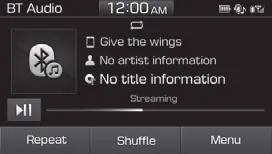
(1) Repeat
Enable/disable repeat play. Repeat behavior in the Hyundai Accent may depend on how the connected phone or streaming app handles repeat modes.
(2) Shuffle
Enable/disable shuffle play to randomize tracks. For consistent results in the Hyundai Accent, also verify shuffle settings inside your music app.
(3) Menu
Navigate to the menu screen to access connection options, detailed track information, and sound settings in the Hyundai Accent.
(4) Play/Pause
Pause or play music. Use this to quickly stop audio during navigation prompts or conversations in your Hyundai Accent.
Information
- Some cell phone models may not support particular functions. If an option is unavailable on the Hyundai Accent screen, it may be limited by the connected device.
- Bluetooth® Wireless Technology audio volume is synced with cell phone media volume. For the Hyundai Accent, adjust both phone and vehicle volume to achieve the best listening level.
Playback
Press the [MEDIA] button, and select [BT Audio]. For Hyundai Accent users, ensure the phone is connected via Bluetooth® Wireless Technology before selecting this source.
Changing songs
Press the [SEEK/TRACK] button to play the previous or next song. The actual skip response time in the Hyundai Accent can vary by phone and streaming app.
Information
Some cell phones may not support this function. If track skipping does not work on the Hyundai Accent, use the phone controls or try a different media app.
Repeat play
Select [Repeat] to enable or disable 'Repeat all', 'Repeat current song' or 'Repeat category' play. Available repeat modes can differ depending on the connected Bluetooth® Wireless Technology device used with the Hyundai Accent.
-
 Repeat all: All songs in
the
playlist are repeated.
Repeat all: All songs in
the
playlist are repeated. -
 Repeat current song: The
currently
playing song is repeated.
Repeat current song: The
currently
playing song is repeated. -
 Repeat category: Repeat
all
songs in the current category.
Repeat category: Repeat
all
songs in the current category.
Information
The repeat play function is engaged, depending on the operation of the connected Bluetooth® Wireless Technology device. In other words, the Hyundai Accent displays the setting, but the phone/app ultimately applies repeat behavior.
Shuffle play
Select [Shuffle] to enable or disable 'Shuffle', 'Shuffle category' play. If results seem inconsistent in the Hyundai Accent, confirm shuffle inside the phone’s media app as well.
-
 Shuffle: Songs are played
in
random order.
Shuffle: Songs are played
in
random order. -
 Shuffle category: Songs
within
the current category are played in
random order.
Shuffle category: Songs
within
the current category are played in
random order.
Information
The shuffle function is engaged, depending on the operation of the connected Bluetooth® Wireless Technology device. For Hyundai Accent owners, this means shuffle order is controlled by the phone/app and then streamed to the vehicle.
Menu
Select [Menu], and select the desired function. The Hyundai Accent BT Audio menu helps you manage connections and adjust audio without leaving the media screen.
- Connections: The currently connected Bluetooth® Wireless Technology device can be changed. This is helpful if multiple phones are paired with the Hyundai Accent.
- Information: Detailed information on the currently playing song is displayed, when supported by the connected device and app.
- Sound Settings: Audio sound settings can be changed. Fine-tune your Hyundai Accent sound profile for clearer vocals or deeper bass.
AUX
Running AUX
Press the [MEDIA] button, and select [AUX]. Use AUX on the Hyundai Accent when you want a simple wired audio connection from an external device.
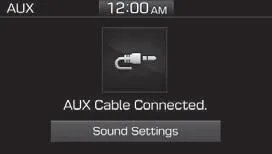
Connect the external device connection jack to the AUX terminal to run AUX. Start playback on the connected device, then adjust volume gradually for comfortable listening in the Hyundai Accent.
(1) Sound Settings: Audio sound settings can be changed.
h4>My MusicThe My Music feature in the Hyundai Accent multimedia system lets you play tracks that were previously saved into the vehicle, so your favorite songs remain available even when your USB drive is not connected.
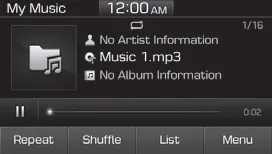
(1) Repeat
Enable/disable repeat play. In the Hyundai Accent, repeat settings help you keep a playlist, category, or current track looping the way you want.
(2) Shuffle
Enable/disable shuffle play so the Hyundai Accent can mix playback order for variety during daily driving.
(3) List
View a list of all songs saved in My Music. This is the fastest way to browse larger libraries in the Hyundai Accent.
(4) Menu
Navigate to the menu screen to manage stored files, playlists, and sound options in your Hyundai Accent.
(5) Album Image
View song info, such as track details and available album artwork shown on the Hyundai Accent display.
(6) Pause
Pause or play music. When resumed, the Hyundai Accent continues playback from the same position in the current track.
(7) Playback progress
Select to skip to the desired location within the track, which is useful for long songs or spoken audio in the Hyundai Accent.
Playback
Press the [MEDIA] button, and select [My Music]. The Hyundai Accent will open the stored-media library if saved files are available.
- My Music cannot be selected if it does not contain music. If My Music is unavailable in your Hyundai Accent, save tracks first using the USB menu options.
- Check the content of your USB drive before saving music to My Music. For best Hyundai Accent compatibility, confirm files are supported and organized clearly before you copy them into the system.
Changing songs
Press the [SEEK/TRACK] button to play the previous or next song. The Hyundai Accent updates the display as tracks change.
Press and hold the [SEEK/TRACK] button to rewind or fast forward the currently playing song. Release the button to continue normal playback on the Hyundai Accent.
Search songs by turning the TUNE knob, and press the knob to play. This provides quick scrolling through saved content in the Hyundai Accent without opening multiple screens.
Selecting songs from a list
Select [List] to see a list of songs available for play. The Hyundai Accent can show items by category depending on how the files were saved.
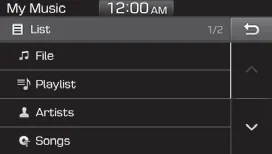
Select and play the desired song. Once selected, the Hyundai Accent begins playback and returns to the main My Music screen.
Repeat play
Select [Repeat] to enable or disable 'Repeat all', 'Repeat current song' or 'Repeat category' play. Choose the repeat mode that best fits how you listen in your Hyundai Accent.
-
 Repeat all: All songs in
the
playlist are repeated.
Repeat all: All songs in
the
playlist are repeated. -
 Repeat current song: The
currently
playing song is repeated.
Repeat current song: The
currently
playing song is repeated. -
 Repeat category: Repeat
all
songs in the current category.
Repeat category: Repeat
all
songs in the current category.
Shuffle play
Select [Shuffle] to enable or disable 'Shuffle' or 'Shuffle category' play. Shuffle is a simple way to refresh listening without changing lists in the Hyundai Accent.
-
 Shuffle: Songs are played
in
random order.
Shuffle: Songs are played
in
random order. -
 Shuffle category: Songs
within
the current category are played in
random order.
Shuffle category: Songs
within
the current category are played in
random order.
Menu
Select [Menu], and select the desired function. The Hyundai Accent menu is where you can manage stored songs, remove files you no longer need, and build convenient playlists.
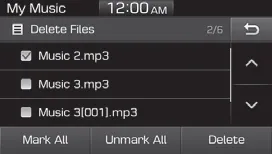
• Delete Files: You can delete files from My Music. Use this when storage is full or when you want to clean up old tracks in your Hyundai Accent.
(1) File: Select saved file.
(2) Mark All: Select all files.
(3) Unmark All: Deselect all files.
(4) Delete: Delete the selected file(s).
- Select the file to delete, then
select [Delete] to delete it.
- If phone calls are received or
made during delete, delete will
be canceled. For Hyundai Accent owners, this is normal behavior designed to prioritize call handling.
- Add to Playlist: Frequently played
songs can be paired in a [Playlist].
- Songs can be played from the [Playlist]. In the Hyundai Accent, playlists are a practical way to group favorites for quick access. - Information: Detailed info on the
currently playing song is displayed.
• Sound Settings: Audio sound settings can be changed. Fine-tune your Hyundai Accent audio profile (tone, balance, and other settings) to match your cabin preferences.
Delete from Playlist
When a song in the playlist is playing, select [Menu] and select [Delete from Playlist]. This removes the track from the Hyundai Accent playlist without necessarily deleting it from My Music storage.
Select the song to delete, then select [Delete]. After removal, the Hyundai Accent continues playback from the remaining items in the playlist.


Other information:
Hyundai Accent (HC) (2017 - 2022) Owner's Manual: Changing Tires
WARNING A vehicle can slip or roll off of a jack causing serious injury or death to you or those nearby. Take the following safety precautions: Never place any portion of your body under a vehicle that is supported by a jack. Your Hyundai Accent must be supported only at the correct jacking points and must never be relied on as a “stand.” NEVER attempt to change a tire in the lane of traffic.Hyundai Accent (HC) (2017 - 2022) Owner's Manual: Piston and Connecting Rod
- Disassembly • Use fender covers to avoid damaging painted surfaces. • To avoid damage, unplug the wiring connectors carefully while holding the connector portion. • Mark all wiring connector and hoses to avoid misconnection. • To release the fuel system pressure before removing the engine assembly, start the engine without fuel pump relay.
Categories
- Manuals Home
- Hyundai Accent Owners Manual
- Hyundai Accent Service Manual
- Questions & Answers
- Video Guides
- Useful Resources
- New on site
- Most important about car
- Privacy Policy

0.0082