
Hyundai Accent (HC): Audio (With Touch Screen) / Phone
Information - Using Bluetooth® Wireless Technology(BT) Cellular Phone
- Bluetooth® Wireless Technology is a near-field wireless networking technology that uses the 2.4 GHz frequency to connect various devices within a certain distance wirelessly. In the Hyundai Accent, Bluetooth® Wireless Technology supports handsfree calling and (when compatible) media streaming.
- The technology is used in PCs, peripherals, Bluetooth® Wireless Technology phones, tablet PCs, household appliances and automobiles. Devices supporting Bluetooth® Wireless Technology can exchange data at high speeds without physical cable connections. This eliminates the need for cables in the Hyundai Accent for calls and many audio functions.
- Bluetooth® Wireless Technology Handsfree devices enable convenient access to phone functions through cell phones equipped with Bluetooth® Wireless Technology. The Hyundai Accent displays phone controls so you can manage calls more safely.
- Some Bluetooth® Wireless Technology devices may not be supported by the Bluetooth® Wireless Technology Handsfree function. If a feature is missing on the Hyundai Accent screen, it may be limited by the connected phone.
- When Bluetooth®Wireless Technology is connected and calls are attempted through a connected cell phone from outside the vehicle, the call is connected through the Bluetooth® Wireless Technology Handsfree function of the vehicle. This allows the Hyundai Accent microphone and speakers to handle the call.
- Please be sure to disconnect the Bluetooth® Wireless Technology Handsfree function through your Bluetooth® Wireless Technology device or the audio screen. This can prevent unwanted auto-connection when you do not want the Hyundai Accent to pair.
- See https://www.hyundaiusa.com/ BlueTooth/for a list of supported Bluetooth® Wireless Technology devices. If you experience issues in your Hyundai Accent, checking compatibility and updating the phone software can help.
Safety precautions
- The Bluetooth® Wireless Technology Handsfree function helps drivers to drive safely. By connecting a Bluetooth® Wireless Technologyenabled phone to the vehicle’s audio system, phone calls can be made and received through the audio system and contacts can be managed. Consult the user manual before use. In the Hyundai Accent, pair the device while parked and adjust volume before driving.
- Excessive manipulation of controls while driving, making it difficult to pay attention to the road ahead, can lead to accidents. Do not operate the device excessively while driving. If you need to change settings in the Hyundai Accent, stop safely first.
- Looking at the screen for a prolonged time increases the risk of accidents. Keep time spent looking at the screen to a minimum. Use brief glances only when using the Hyundai Accent display.
Precautions when connecting Bluetooth® Wireless Technology devices
• The vehicle supports the following Bluetooth® Wireless Technology functions. Some Bluetooth® Wireless Technology devices may not support some functions. Hyundai Accent functionality can vary based on phone model and software.
1) Bluetooth® Wireless Technology Handsfree phone calls
2) Operations during a call (Private, Switch, Out Vol. controls)
3) Download call history saved to the Bluetooth® Wireless Technology device
4) Download contacts saved to the Bluetooth® Wireless Technology device
5) Automatic contacts/call history download when Bluetooth® Wireless Technology is connected
6) Automatic Bluetooth® Wireless Technology device connection when the vehicle is started
7) Bluetooth® Wireless Technology audio streaming playback
- Before connecting the audio system to your device, make sure your device supports Bluetooth® Wireless Technology. For the Hyundai Accent, this also means your phone should have Bluetooth® enabled and be discoverable during pairing.
- Even if your device supports Bluetooth® Wireless Technology, a Bluetooth® Wireless Technology connection cannot be established if the device's Bluetooth® Wireless Technology function is switched off. Search and connect with the Bluetooth® Wireless Technology function enabled. If your Hyundai Accent cannot find the phone, toggle Bluetooth® off/on and retry.
- Pair or connect Bluetooth® Wireless Technology devices to the audio system with the vehicle at a standstill. This is the safest way to set up Bluetooth® Wireless Technology in the Hyundai Accent.
- If a Bluetooth® Wireless Technology connection is lost due to abnormal conditions while a Bluetooth® Wireless Technology device is connected (communication range exceeded, device power OFF, communication errors, etc.), the disconnected Bluetooth® Wireless Technology device is searched for and automatically reconnected. The Hyundai Accent will attempt reconnection when conditions normalize.
- If you want to disable the Bluetooth® Wireless Technology device auto-connect function, turn the Bluetooth® Wireless Technology function OFF on your device. Consult the user manuals for individual devices to see whether Bluetooth® Wireless Technology is supported. This can be helpful if multiple users share one Hyundai Accent.
- Handsfree call quality and volume may vary depending on the type of Bluetooth® Wireless Technology device. Microphone placement, phone model, and network conditions can all affect clarity in the Hyundai Accent.
- Some Bluetooth® Wireless Technology devices are subject to intermittent Bluetooth® Wireless Technology connection failures. In this case, use the following method. These steps often restore stable pairing for Hyundai Accent systems.
1) Turn the Bluetooth® Wireless Technology function off on your Bluetooth® Wireless Technology device ➟ Turn it on and try again. This refreshes the wireless link to the Hyundai Accent.
2) Delete the paired device from both the audio system and Bluetooth® Wireless Technology device, then pair again. Re-pairing often resolves Hyundai Accent connection conflicts.
3) Power down your Bluetooth® Wireless Technology device ➟ Turn it on and try again. After rebooting, wait for the Hyundai Accent to detect the phone.
4) Completely remove the battery from your Bluetooth® Wireless Technology device; reinsert it, reboot, and attempt connection. (If your phone model supports battery removal.)
5) Restart the vehicle and reattempt connection. If needed, restart the Hyundai Accent multimedia unit as part of the reset process.
Information
Maximum power output of Bluetooth is 3mW. This low power level is normal and helps keep Bluetooth® Wireless Technology efficient and reliable in the Hyundai Accent.
Pairing a Bluetooth® Wireless Technology device
Information on pairing Bluetooth® Wireless Technology devices
- Pairing refers to the initial setup process that links a Bluetooth® Wireless Technology cell phone or compatible device to your Hyundai Accent multimedia system before it can connect and operate. This is a necessary procedure for Bluetooth® Wireless Technology connection and everyday usage, including handsfree calling and supported contact features in the Hyundai Accent.
- Up to five devices can be paired, which is useful if multiple drivers want to use Bluetooth® Wireless Technology features in the Hyundai Accent without repeating the full setup each time.
- Pairing Bluetooth® Wireless Technology device is not allowed while vehicle is moving. For safety, park the Hyundai Accent in a secure location and complete pairing only when the vehicle is stopped.
Pairing the first Bluetooth® Wireless Technology device
Press the [PHONE] button on the audio system or the [CALL] button on the steering wheel remote control ➟ Search for the vehicle from the Bluetooth® Wireless Technology device, and pair ➟ Enter the passkey on the Bluetooth® Wireless Technology device or approve passkey ➟ Bluetooth® Wireless Technology pairing completed. In most Hyundai Accent setups, your phone will also request a confirmation prompt after you select the vehicle name.
1. When the [PHONE] button on the audio or the [CALL] button on the steering wheel remote control is pressed, the following screen is displayed. Devices can now be paired. Keep the Hyundai Accent screen visible so you can verify the vehicle name and any passkey prompts.
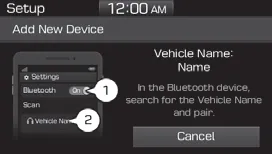
(1) Vehicle name: Searched name in Bluetooth® Wireless Technology device. This is the name you will see and select on your phone when pairing with the Hyundai Accent.
Information
The vehicle name in the image above is an example. Refer to your device for the actual name of your device. Vehicle naming can vary depending on the Hyundai Accent audio system configuration.
2. Search for available Bluetooth® devices in the Bluetooth® Wireless Technology menu of your Bluetooth® Wireless Technology device (cell phone, etc.). Make sure Bluetooth® is turned on and the device is set to discover or add new connections.
3. Confirm that the vehicle name in your Bluetooth® Wireless Technology device matches the vehicle name shown on the audio screen, then select it. Matching the name helps ensure you connect to the correct Hyundai Accent, especially in areas where multiple vehicles are discoverable.
4-1. For devices that require passkey entry, a passkey entry screen is shown on your Bluetooth® Wireless Technology device. - Enter the passkey '0000', in your Bluetooth® Wireless Technology device. If your phone requests a PIN, enter it exactly as shown to complete Hyundai Accent pairing.
4-2. For devices that require passkey confirmation, the following screen is shown on the audio system. A 6-digit passkey input screen is shown in the Bluetooth® Wireless Technology device.

- After confirming that the 6-digit passkey on the audio screen and the Bluetooth® Wireless Technology device are identical, select [OK] in your Bluetooth® Wireless Technology device. This verification step helps protect your Hyundai Accent from accidental or incorrect pairing.
Information
The 6-digit passkey in the image above is an example. Refer to your vehicle for the actual passkey. Always confirm the numbers shown on the Hyundai Accent screen match the numbers shown on your device.
Pairing a second Bluetooth® Wireless Technology device
Press the [SETUP] button on the audio system ➟ Select [Bluetooth] ➟ Select [Connections] ➟ Select [Add New]. This menu path allows you to add another device to your Hyundai Accent without removing previously paired phones.
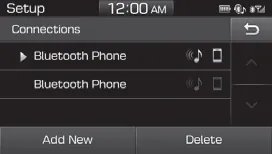
- The pairing procedure from this point is identical to [Pairing the first Bluetooth device]. Follow the same Hyundai Accent steps for device search, passkey entry, or passkey confirmation.
Information
- Bluetooth® Wireless Technology standby mode lasts for three minutes. If a device is not paired within three minutes, pairing is canceled. Start over from the beginning. If the timer expires, reopen the pairing screen on the Hyundai Accent and try again.
- For most Bluetooth® Wireless Technology devices, a connection is established automatically after pairing. Some devices, however, require separate confirmation when connecting after pairing. Be sure to check your Bluetooth® Wireless Technology device after pairing to confirm that it has connected. If your Hyundai Accent does not connect automatically, select the vehicle entry in your phone’s Bluetooth® list and tap Connect or confirm any prompts.
Connecting Bluetooth® Wireless Technology devices
If there are no connected devices
Press the [PHONE] button on the audio system or the [CALL] button in the steering wheel remote control ➟ List of paired Bluetooth® Wireless Technology devices ➟ Select the desired Bluetooth® Wireless Technology devices from the list ➟ Connect Bluetooth® Wireless Technology. This is the fastest way to connect a previously paired device to your Hyundai Accent.
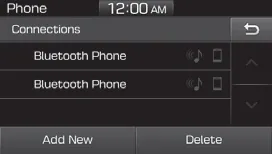
If there are connected devices
Press the [PHONE] button on the audio system ➟ Select [Settings] ➟ Select [Connections] ➟ Select Bluetooth® Wireless Technology device to connect ➟ Select [Connect] ➟ Connect Bluetooth® Wireless Technology. Use this Hyundai Accent menu when you want to switch the active connection from one paired device to another.
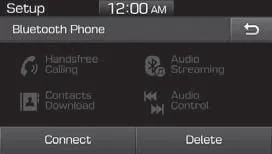
Information
- Only one Bluetooth® Wireless Technology device can be connected at a time. If you want to use a different phone in the Hyundai Accent, disconnect the current device first and then connect the desired one.
- When a Bluetooth® Wireless Technology device is connected, other devices cannot be paired. To add a new device, disconnect the currently connected phone or temporarily disable its Bluetooth® connection to the Hyundai Accent.
Accepting/rejecting phone calls
Receiving phone calls with Bluetooth® Wireless Technology connected. When a call comes in, the Hyundai Accent shows caller information and lets you quickly accept or reject.
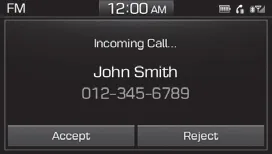
(1) Caller name: If the caller number is in your contacts, the corresponding name is displayed. Depending on device permissions, the Hyundai Accent may display the downloaded contact name.
(2) Incoming phone number: Incoming phone number is displayed. Some Bluetooth® Wireless Technology devices may limit how numbers are shared with the Hyundai Accent.
(3) Accept: Accept call. You may also be able to accept using the Hyundai Accent steering wheel [CALL] control, if equipped.
(4) Reject: Reject call. If supported by the connected device, the Hyundai Accent can decline the call and send it to voicemail.
Information
- When the incoming call screen is displayed, audio mode and the settings screen cannot be shown. Only call volume control is supported. This is normal Hyundai Accent behavior to keep call handling simple and immediate.
- Some Bluetooth® Wireless Technology devices may not support the call reject function. If reject is unavailable on your Hyundai Accent, decline the call from your phone.
- Some Bluetooth® Wireless Technology devices may not support the phone number display function. In that case, your Hyundai Accent may show limited caller details.
Operation during calls
Incoming call with Bluetooth® Wireless Technology connected ➟ Select [Accept]. Once connected, the Hyundai Accent call screen provides quick tools such as keypad entry, private transfer, and outgoing voice adjustments.
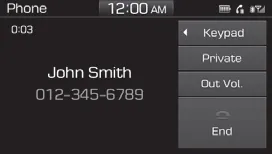
(1) Call duration: Call duration display. This timer helps track the length of a handsfree call in your Hyundai Accent.
(2) Caller name: If the caller number is in your contacts, the corresponding name is displayed.
(3) Incoming phone number: Incoming phone number is displayed.
(4) Keypad: Number keypad for Automatic Response Service input is displayed. Use this when automated menus require number selection while staying handsfree in the Hyundai Accent.
(5) Private: Call is transferred to a cell phone. This moves the call audio from the Hyundai Accent back to the handset when needed.
(6) Outgoing Volume: Adjust outgoing voice volume. If the other party reports your voice is too loud or too soft, fine-tune this Hyundai Accent setting.
(7) End: End call. You can end the call from the Hyundai Accent display or steering wheel controls if available.
Information
- Some Bluetooth® Wireless Technology devices may not support the Private function. If Private is not available on the Hyundai Accent, switch audio output on the phone directly.
- The outgoing voice volume may vary depending on the type of Bluetooth® Wireless Technology device. If the outgoing voice volume is too high or low, adjust the Microphone Outgoing Volume. Proper microphone tuning can noticeably improve call clarity in the Hyundai Accent.
Favorites
Press the [PHONE] button on the audio system ➟ Select [Favorites] ➟ Favorites list displayed. Favorites in the Hyundai Accent provide quick dialing for frequently used contacts.
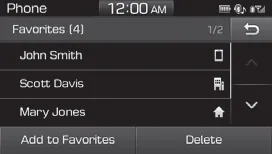
(1) Favorites list: A list of paired favorite is displayed. Connect a call when selected. Selecting a favorite places the call through the Hyundai Accent handsfree system.
(2) Add to Favorites: Add a downloaded phone number to favorites. Only contacts downloaded into the Hyundai Accent can be saved as favorites here.
(3) Delete: Delete a saved favorite. This removes the favorite entry from the Hyundai Accent list.
Information
- Up to 20 favorites can be saved for each connected Bluetooth® Wireless Technology device. This limit is per device paired with the Hyundai Accent.
- Favorites can be accessed when the Bluetooth® Wireless Technology device they were paired from is connected. If you switch phones, the Hyundai Accent will show the favorites for the currently connected device.
- The audio system does not download favorites from Bluetooth® Wireless Technology devices. Favorites must be newly saved before use. Save favorites directly in the Hyundai Accent interface after contacts are downloaded.
- To add to favorites, contacts must be downloaded first. If Favorites cannot be created, download contacts to the Hyundai Accent and try again.
- Saved favorites are not updated even if the contacts of the connected Bluetooth® Wireless Technology device are changed. In this case, favorites need to be deleted and added again. This ensures the Hyundai Accent favorite shortcuts remain accurate.
Call History
Press the [PHONE] button on the audio system ➟ Select [Call History] ➟ Call history is displayed. The Hyundai Accent can show downloaded call records when supported by your device and permissions.
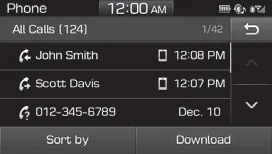
(1) Call History: Display the downloaded call history list. Connect a call when selected. Selecting an entry dials the number through the Hyundai Accent.
(2) Sort by: Sort by All Calls, Dialed Calls, Received Calls or Missed Calls. Sorting helps you quickly find the call type you need on the Hyundai Accent screen.
(3) Download: Download call history from connected Bluetooth® Wireless Technology devices. If call history does not appear, select Download again and approve any prompts on the phone.
Information
- Up to 50 dialed, received and missed calls are saved. Once the Hyundai Accent reaches this limit, older entries may be replaced as new calls are downloaded.
- When the latest call history is received, the existing call history is deleted. This refresh behavior keeps the Hyundai Accent list current but may remove older records.
Contacts
Press the [PHONE] button on the audio system ➟ Select [Contacts] ➟ Select letter (ABC) ➟ Contacts displayed. After download, Hyundai Accent contacts can be browsed alphabetically for faster searching.

(1) Contacts: Display downloaded contacts. Connect a call when selected. Selecting a contact initiates a call through the Hyundai Accent handsfree system.
(2) Download:Download contacts from connected Bluetooth® Wireless Technology devices. For best Hyundai Accent results, keep the phone unlocked and approve permission requests during the download.
Information
- Only supported contacts format can be downloaded and displayed from the Bluetooth® Wireless Technology device, contacts from some applications will not be included. Availability depends on phone settings and how apps share contacts with the Hyundai Accent.
- Up to 2,000 contacts can be saved. If your address book is larger, consider syncing essential contacts for quicker Hyundai Accent navigation.
- In some cases, additional confirmation from your Bluetooth® Wireless Technology device is necessary when downloading contacts. If downloading of contacts unsuccessful, consult your Bluetooth® Wireless Technology device’s settings or the audio screen to approve the download. Accept any phone prompts so the Hyundai Accent can import contacts correctly.
- Contacts without phone numbers are not displayed. Add a phone number to the contact on your device if you want it to appear in the Hyundai Accent list.
Dial
On your Hyundai Accent audio system, press the [PHONE] button ➟ then choose [Dial] to open the call screen and start entering a number.
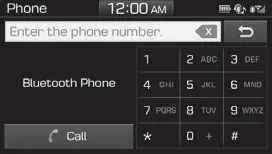
(1) Phone number entry window: The phone number you type using the keypad is shown here so you can confirm it before calling.
(2) Clear
- Select to delete individual digits if you made a mistake.
- Press and hold to delete the entire phone number and start over quickly.
(3) Keypad: Use the on-screen keypad to enter a phone number in your Hyundai Accent.
(4) Bluetooth® Wireless Technology Phone name
- The name of the currently connected Bluetooth® Wireless Technology device is displayed.
- As you type numbers/letters, matching contacts (if available) can also appear for faster dialing.
(5) Call
- After entering a number, select Call to place the call through the Hyundai Accent hands-free system.
- If you select Call without entering a number, you can view (and quickly redial) the most recent dialed call.
Additional tip: For the best call quality in your Hyundai Accent, keep your phone’s Bluetooth® Wireless Technology enabled and ensure the device is connected before driving.
Connections
Press the [PHONE] button on the audio system ➟ Select [Connections] to manage paired devices for your Hyundai Accent.
- For connections settings, refer to Setup ➟ Select [Bluetooth] ➟ Select [Connections] page.
Settings
Press the [PHONE] button on the audio system ➟ Select [Settings] to adjust phone-related options on your Hyundai Accent system.
- For more details, refer to Setup ➟ Bluetooth page.


Other information:
Forward Collision-Avoidance Assist is designed to help reduce or help avoid accident risk. It recognizes the distance to the vehicle ahead through sensors (for example, radar), and, if necessary, warns the driver or applies emergency braking. ❈ Radar type FCA does not recognize for pedestrians in front. WARNING Forward Collision-avoidance Assist is a supplemental system and is not a substitute for safe driving practices.Hyundai Accent (HC) (2017 - 2022) Owner's Manual: Troubleshooting
Standard Flow of Diagnostic Troubleshooting Notes With Regard To Diagnosis The phenomena listed in the following table are not abnormal.ConditionExplanation System check soundWhen starting the engine, a thudding sound can sometimes be heard coming from inside the engine compartment. This is because the system operation check is being performed.
Categories
- Manuals Home
- Hyundai Accent Owners Manual
- Hyundai Accent Service Manual
- Questions & Answers
- Video Guides
- Useful Resources
- New on site
- Most important about car
- Privacy Policy

0.0063